
Status channel
Server Status, Bot State, and Log Processing
Keep Legion bot state, Nitrado settings, log-processing progress, and processed-message counts visible to server owners through the status channel.
Live operations view
Server Status makes Legion's live log-processing state visible to server owners.
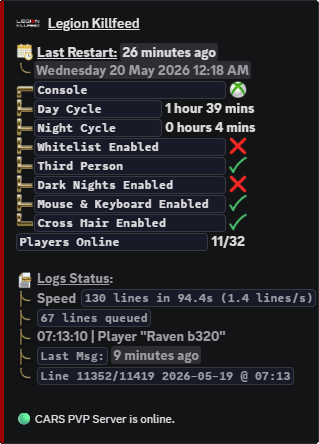
Legion updates the configured status channel with the bot's view of the connected Nitrado gameserver, its saved settings, and the admin-log processing position.
That gives owners a clear operating window into whether the bot is reading logs, how many messages were processed, what remains queued, and which Nitrado settings Legion is currently seeing.
What Server Status shows
The status embed pulls Nitrado gameserver state, slots, current player count, console, map, last status change, restart context, and saved server settings such as whitelist, third person, crosshair, mouse and keyboard, time acceleration, dark nights, mission, and lighting config.
It also reports log-processing health: the last processed message preview, processed-line count, processing speed, remaining queued lines, current log position, log timestamp, and last-message timing.
Transparent by design
Legion does not reduce the status channel to a vague online/offline label. It exposes the useful parts of its processing state to the people who own the server.
That makes support clearer: owners can see the bot state, the Nitrado state, and the log-processing state in the same place instead of waiting for someone to guess what happened behind the scenes.
Why that matters
- Owners can verify that Legion is actively processing the connected service as close to real-time as Nitrado allows.
- Processed-message counts and remaining queued lines make delays easier to understand without hiding the work.
- Visible Nitrado settings help owners catch configuration drift before it turns into a support issue.
- The status channel gives Legion a notable, transparent way to operate because the processing state is not locked away from the server owner.
How staff use it
- Confirm the bot is alive and still processing admin logs for the connected service.
- Check whether Nitrado settings match what the server owner expects.
- Review processed-message progress before treating a feed delay as a wider outage.
- Use manual Nitrado and log commands when the status message needs deeper review.
Commands and options
Copy the command name, then fill in the Discord options listed under it. Discord shows the option fields after the command is selected.
/settings view/settings misc/nitrado view/nitrado settings/admin current