
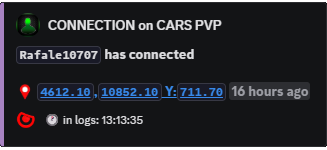
Player presence
Connect Feed and Player Presence
Post joins, leaves, reconnects, and restart context so staff can place players on the server timeline.
Server timeline
Connect Feed shows who was online when something happened.
Join, leave, and reconnect posts help staff line up fights, raids, crashes, restarts, and support tickets.
The feed is context, not punishment. It is strongest when compared with Killfeed, Hit Feed, Build Feed, tickets, and raw logs.
What staff can prove from it
Most incident reports start with “who was online.” Connect Feed gives staff the timeline before they open deeper logs: who joined before a fight, who left after a raid, and whether a reconnect lines up with a crash or combat log report.
For public channels, it also shows server activity without exposing every private staff record.
Commands
- Use
/settings channel assignto choose the connect feed channel. - Use
/settings configure locationsand adjustconnectif join and leave posts should include location detail. - Use
/plonto show current players online. - Use
/last restartwhen staff need the last restart time while checking connection timing.
Location privacy
For privacy-focused servers, keep connection locations off or staff-only. Public join posts can show activity without exposing where a player spawned or disconnected.
For support cases, compare Connect Feed timing with Killfeed, Hit Feed, Build Feed, and Log Feed records before making a staff decision.
Commands and options
Copy the command name, then fill in the Discord options listed under it. Discord shows the option fields after the command is selected.
/settings channel assign/settings configure locations/plon/last restart